Home > Server Management Console (SMC) > Events & Conditions > Condition Behavior
Condition Behavior |
AutoMate BPA Server conditions are objects that are often used to trigger workflow execution. However, they can also alter a workflow's path depending on whether or not a particular event or condition has transpired or enable a workflow to wait (by suspending its execution) until a specified event takes place. All available conditions encompass behavioral properties that dictate how they should react when an observed event or condition is met. These properties are significant in determining whether the condition should act as a trigger, conditional object or wait element. If a condition object is instructed to wait, other options are available that direct how long and/or how often it should wait.
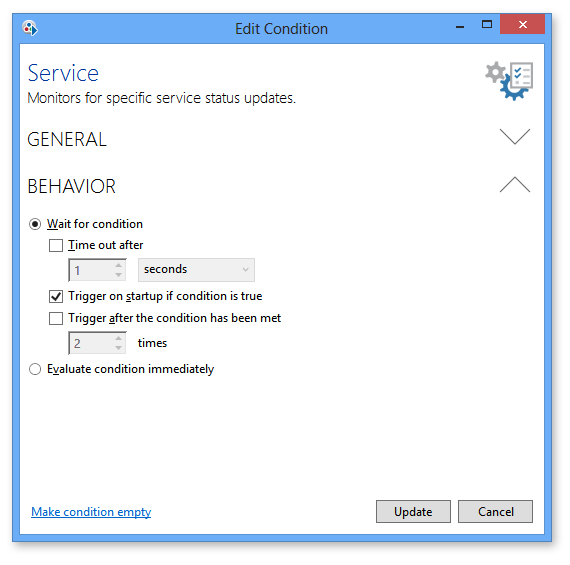
A condition's behavior properties can be accessed from within the Workflow Designer (WFD) by double-clicking the condition or right-clicking the condition and selecting Edit from the context menu. A dialog showing the properties of that condition will appear. Simply navigate to the Behavior properties (as shown below). Alternatively, a condition's properties can be accessed from the Server Management Console (SMC) by navigating to Repository -> Conditions and double-clicking the desired condition or right-clicking it and selecting Edit from the context menu. Behavior parameters are identical in all conditions.
The Behavior properties are comprised of two main parameters that primarily determine the overall behavior of an Automate condition. These parameters dictate to the workflow whether or not it should wait for the monitored condition to take place. The available options are:
Wait for Condition - The workflow will wait (either indefinitely or until a specified length of time) for the condition to occur. Select this parameter if the AutoMate condition should act as a trigger object in the beginning of a workflow or as a wait object in the middle of a workflow. If this parameter is selected, succeeding options become available.
Evaluate condition immediately - The workflow will not wait. Instead, it will immediately evaluate whether the condition is TRUE or FALSE. Select this parameter if the AutoMate condition should act as a conditional object which can determine a workflow's path depending on whether the condition results to TRUE or FALSE. For example, a File condition can be used in the middle of a workflow to immediately determine if File_A exists inside Folder_B. If TRUE, run Task1. If FALSE, run Task2 instead.
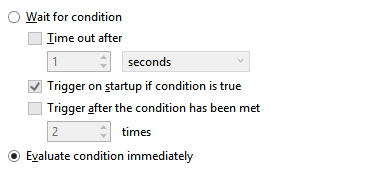
The behavioral properties of a newly created condition is always set to wait indefinitely for the specified condition to occur (as shown above), which means that it will behave as a trigger object if placed in the beginning of a workflow. To modify the behavior, simply make the proper adjustments. For more details, see the table below.
Property |
Description |
Options |
Description |
Wait for condition |
If enabled, waits for the occurrence of the specified condition according to the succeeding parameters. (enabled by default). |
Time out after |
If enabled, the system suspends workflow execution at the specified object until the monitored condition evaluates to TRUE, at which point, execution proceeds. Select this option if you want the condition to act as a WAIT object. This option requires a timeout value to allow a more efficient usage of time and resources. Rather than waiting indefinitely, the workflow will abort after the timeout period has elapsed. NOTE: A timeout results to a failure. Therefore, a Failure arrow can be used to continue workflow execution (for example, to run a specific task that remedies the problem) in case a timeout occurs. |
Trigger on startup if condition is true |
If enabled, the system will react to conditions that already exist upon startup (i.e. when the AutoMate BPA service starts, when global triggering is turned on or when the specified workflow is re-enabled). For example, assume a File System condition is set to trigger workflow execution when FileA.txt exists in C:\Temp. If this condition occurred (FileA.txt was copied to C:\Temp) while the AutoMate BPA service was stopped, when the service restarts, it will act on the current existence of C:\Temp\FileA.txt and immediately trigger workflow execution. If this parameter is disabled, the current existence of C:\Temp\FileA.txt will be ignored. Instead, the condition will monitor for subsequent occurrences as specified in the Trigger after the condition has been met X times parameter. NOTE: In reference to "startup", a newly created AutoMate condition starts up as soon as the developer clicks the Update button to save its properties. Startup of existing conditions normally commence when the condition becomes active, such as when the BPA Service starts or the workflow in which it resides is re-enabled. |
||
Trigger after the condition has been met X times |
If enabled, the system continues to wait until the monitored condition has transpired the specified amount of times. For example, a Window condition is set to watch for the existence of an Internet Explorer window. If this parameter is set to trigger after the condition has been met 3 times, the system will ignore the first two times that an Internet Explorer window appears and perform the assigned wait instructions only after the third instance of an Internet Explorer window appears. |
||
All options disabled |
If all options are disabled, the system waits indefinitely for the monitored condition to occur and begins workflow execution as a result. Because the wait is indefinite, selecting this option allows the AutoMate condition to behave as a TRIGGER object. This option is enabled by default. NOTE: Triggers are used to initiate workflow execution, therefore, they must be the first object in a workflow. |
||
Evaluate condition immediately |
N/A |
N/A |
If enabled, the system does not wait. Instead, it immediately determines if the monitored condition evaluates to TRUE or FALSE. This option allows decisions to be made during the course of a workflow. It can determine the course of a workflow based on results, thus, allowing the AutoMate condition to behave as a CONDITIONAL (decision making) object. For example, using the Window Condition example mentioned above, if this option is enabled, the system does not wait for the existence of an Internet Explorer window. Rather, it will immediately determine if the window already exists on the desktop. If the evaluation results to TRUE, the execution is marked as success and therefore execution follows the path marked by a Success (Green) Arrow. If the evaluation results to FALSE, the execution is marked as failure and execution follows the path marked by a Failure (Red) Arrow. NOTE: This option supports ensuing use of Success and Failure Flow Control Arrows only. It does not support the use of Result Arrows. |
The following examples describe how conditions behave in specific circumstances.
CASE 1 - Condition used as a trigger |
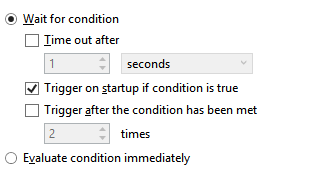
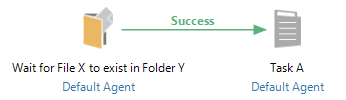
Description:This simple workflow uses a File condition as a trigger. The File condition waits for 'File X' to exist in 'Folder Y' and automatically executes 'Task A' when such an event occurs. It will trigger if the condition is true on startup as well. |
 |
Behavior settings:
|
Comments:A condition can be used to trigger the start of a workflow only under certain circumstances:
NOTE: This is the default behavior properties for newly created conditions. |
CASE 2 - Trigger after condition is met 3 times. |
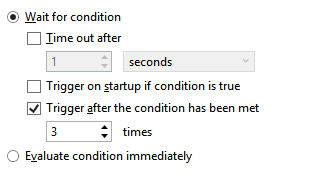
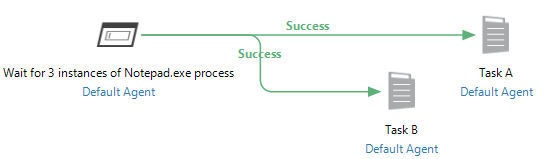
Description:A Process condition is set as the first object in a workflow to monitor for the 'Notepad.exe' process to start a total of 3 times before triggering the execution of 'Task A' and 'Task B' concurrently. It will ignore conditions that are true on startup. |
 |
Behavior settings:
|
Comments:A condition can be set to trigger after a particular event has transpired a certain amount of times. This can be performed by selecting its behavior properties to Wait for condition along with Trigger after the condition has been met and select the amount of times the condition should occur before the trigger becomes active. |
CASE 3 - Condition used as a wait element |
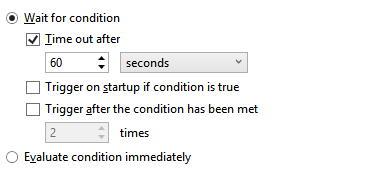
Description:A Window condition is used in the middle of a workflow to wait for the Internet Explorer window to appear before proceeding to Task B. If Internet Explorer does not appear within 60 seconds from the time the workflow arrived at this object, a timeout will occur. |
 |
Behavior settings:
|
Comments:To set a condition to wait for a specific event to transpire at a specific point in a workflow, set the behavior properties to Wait for condition along with Timeout After and enter the desired amount of time for the condition to wait. Execution will proceed if the monitored condition is met within the time specified. If it is not met, a timeout occurs. NOTE: A time out value is not required, however, omitting this option makes the wait indefinite. |
CASE 4 - Proceed after condition is met 3 times |
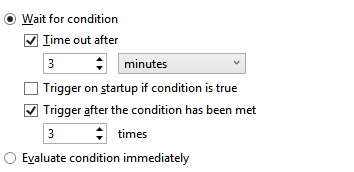
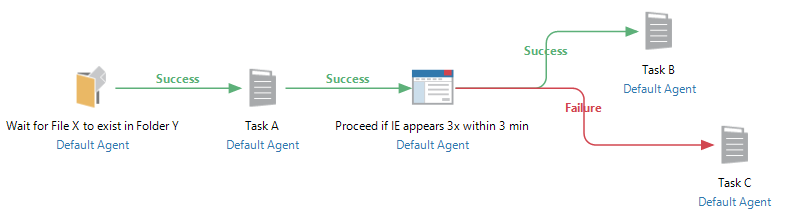
Description:A Window condition is used in the middle of a workflow to wait for the Internet Explorer window to appear a total of 3 times within 3 minutes. If this occurs, the condition returns TRUE and therefore follows the Success (green) arrow to Task B. If Internet Explorer does not appear 3 times within 3 minutes, the condition returns FALSE and therefore proceeds to the Failure (red) arrow pointing to task C. |
 |
Behavior settings:
|
Comments:A condition can be set to delay an active workflow until a particular event has occurred a specific number of times by enabling the option Trigger after the condition has been met and selecting the amount of times the event should occur before the workflow continues. Additionally, a condition can determine the direction of a workflow depending on the outcome as a result of the wait. NOTE: A time out value is not required, however, omitting this option makes the wait indefinite. |
CASE 5 - Condition used as an "If" statement |
Description:A File condition is used to evaluate if File A exists in Folder B. If the condition returns TRUE, the workflow proceeds to the Success (green) arrow pointing to Task D. If the condition returns FALSE, the workflow continues to the Failure (red) arrow which points to Task E. |
 |
Behavior settings:
|
Comments:A condition can act as an If conditional by settings the behavior properties to Don't wait, execute immediately. When this option is selected, the system will not wait, but rather, it will evaluate the specified condition immediately, and return a TRUE or FALSE. |